
Instructions
Annotate
Step 1: Upload
Upload a full bacterial genome for BASys2 to annotate. There are two options:
- UPLOAD FILE - Upload your GenBank formatted file, FASTA DNA sequence file or FASTQ DNA sequence file. If a multi-fasta file is submitted, a batch will be created with jobs for the first 10 sequences in the input file. These will be processed as individual genomic sequences and not together as a contigs. You may view detailed INPUT INFORMATION here.
- ENTER ACCESSION - Input a GenBank Accession number. GI numbers are not supported in BASys2.
Click the green "Load Example" button under your section of choice if you do not have input. Or you can download an example Genbank file or example Fasta file by clicking on the links.
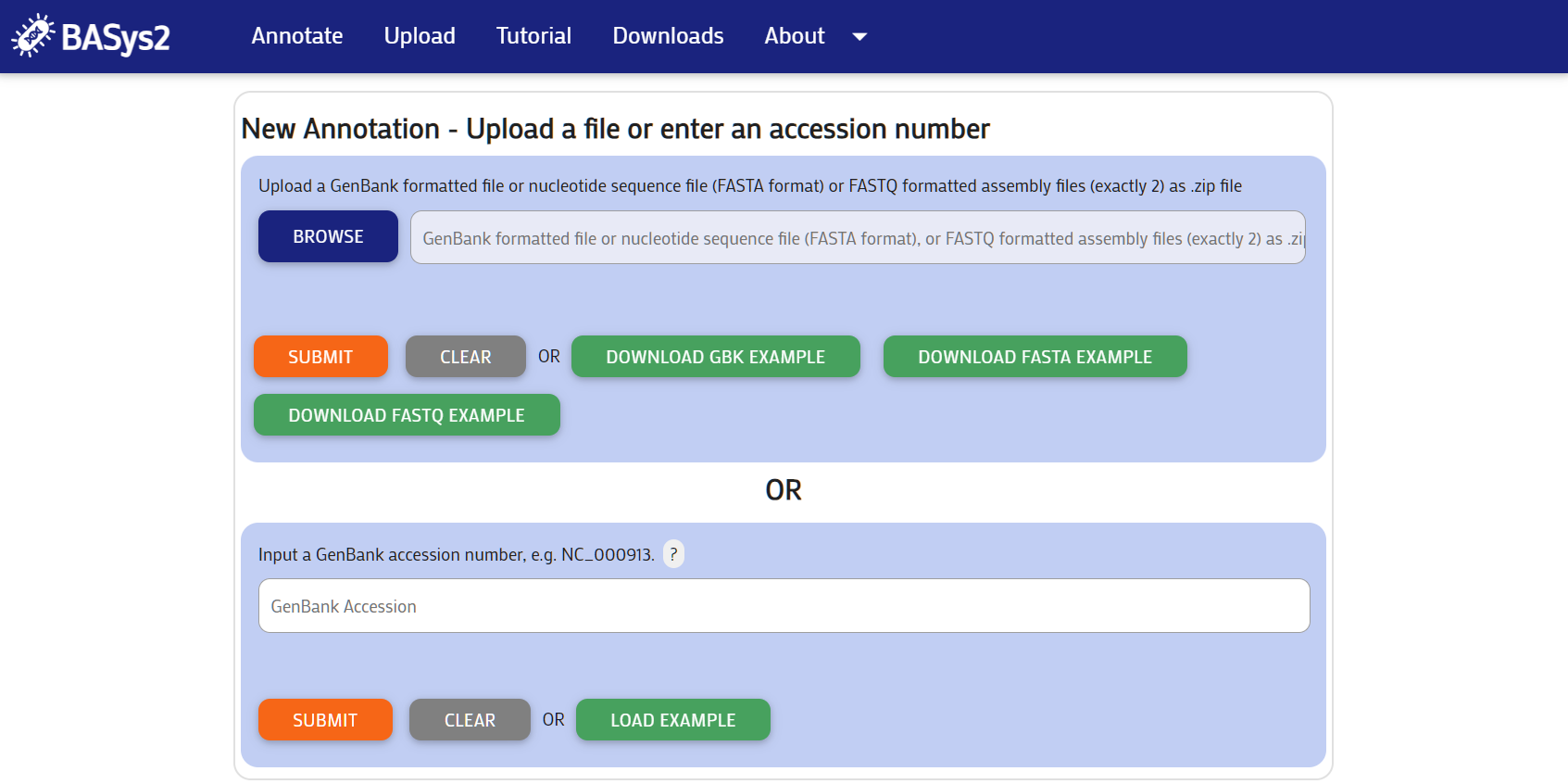
Step 2: Submit
Press the "Submit" button. The following page will be shown. Bookmark the page or save the URL to access your results later.
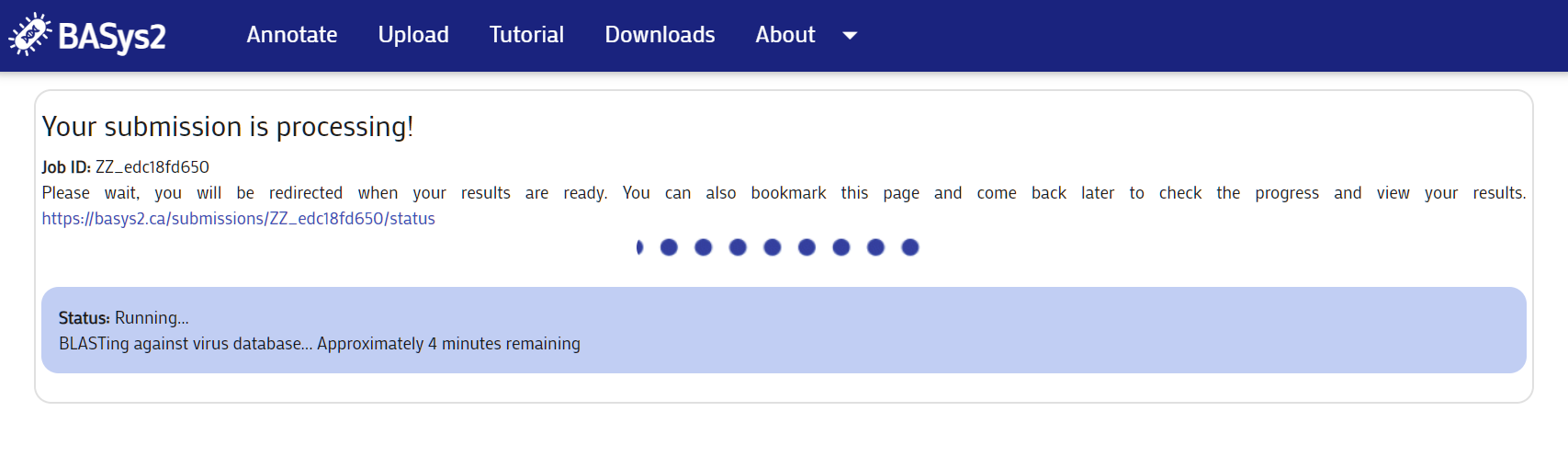
Step 3: Complete Upload
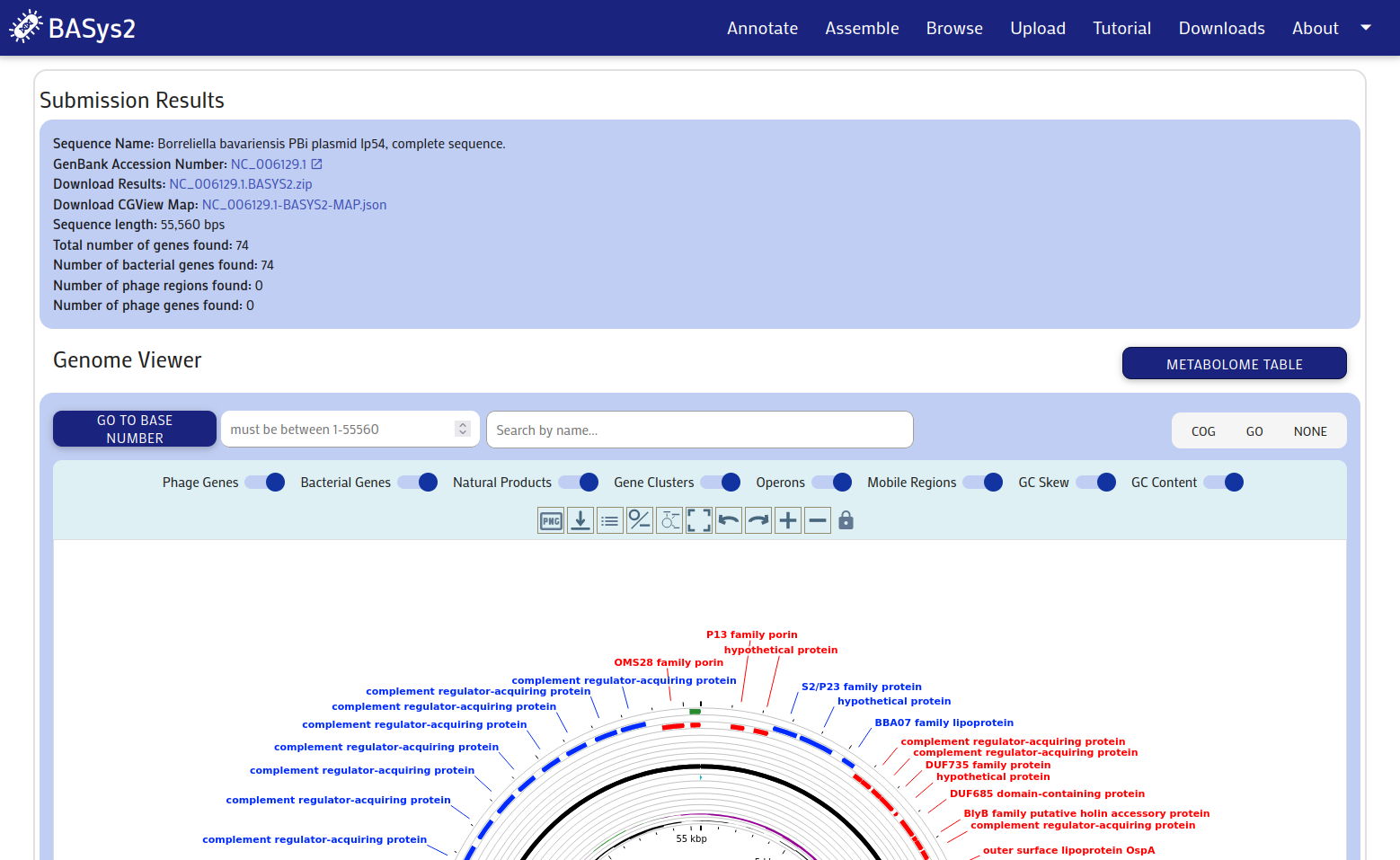
Once the file upload has been completed, the following results page will be shown. You may download the genome map by clicking the "BASYS2-MAP.json" download link. This file can be uploaded to the BASys2 Visualizer Software that can be downloaded HERE. You may also download the images of the genome map by clicking on the file_download icon below the viewers. The entire results package may be downloaded via the 'Download Results' link at the top of the results section. You may view detailed OUTPUT INFORMATION here.
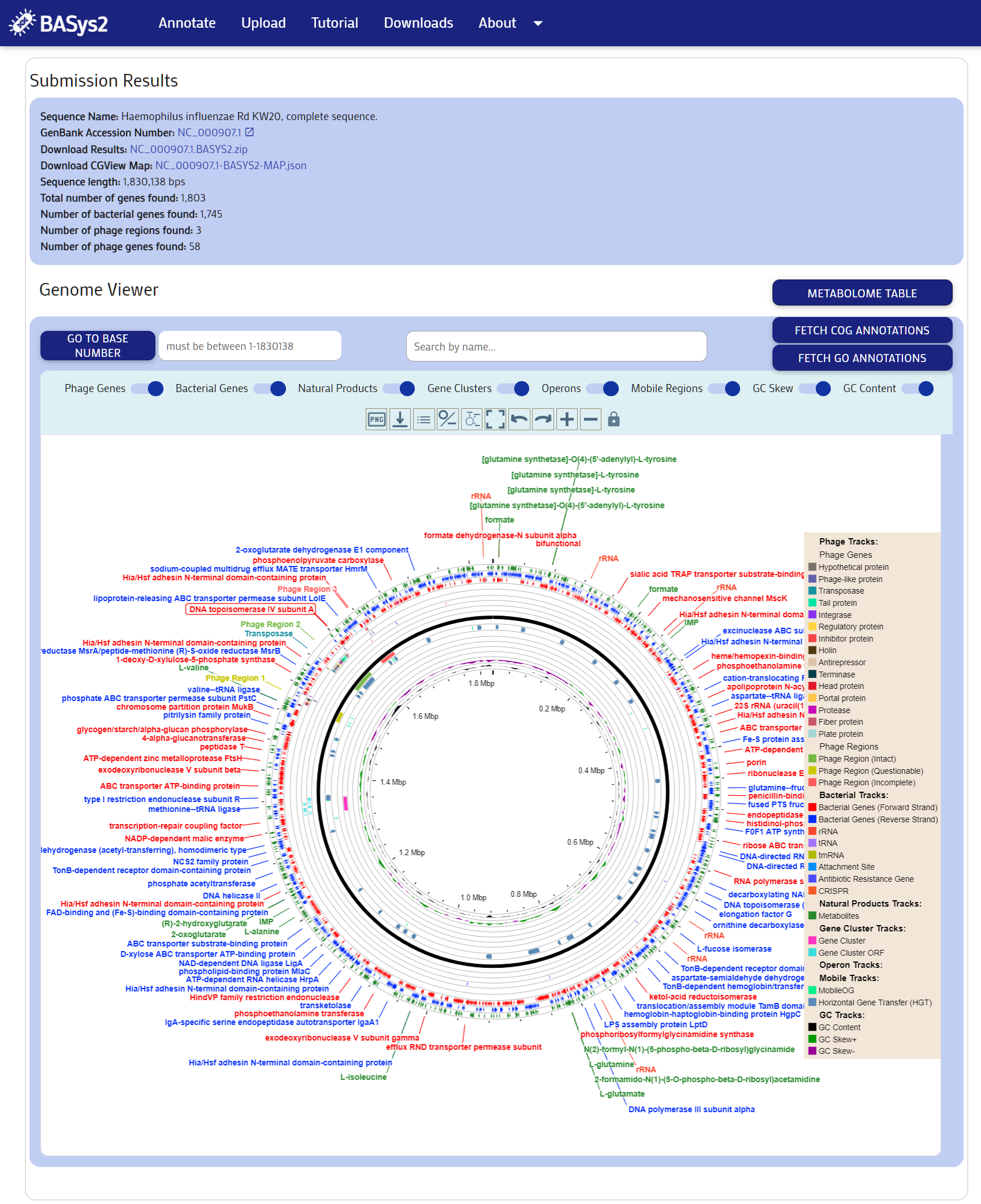
Step 4: Exploring the Genome Map
You can explore the genome map using the map controls and clicking on genes. Clicking on a gene will display a pop-up with the gene's details. You may download a FASTA file of the selected gene by clicking the "Download FASTA" button.
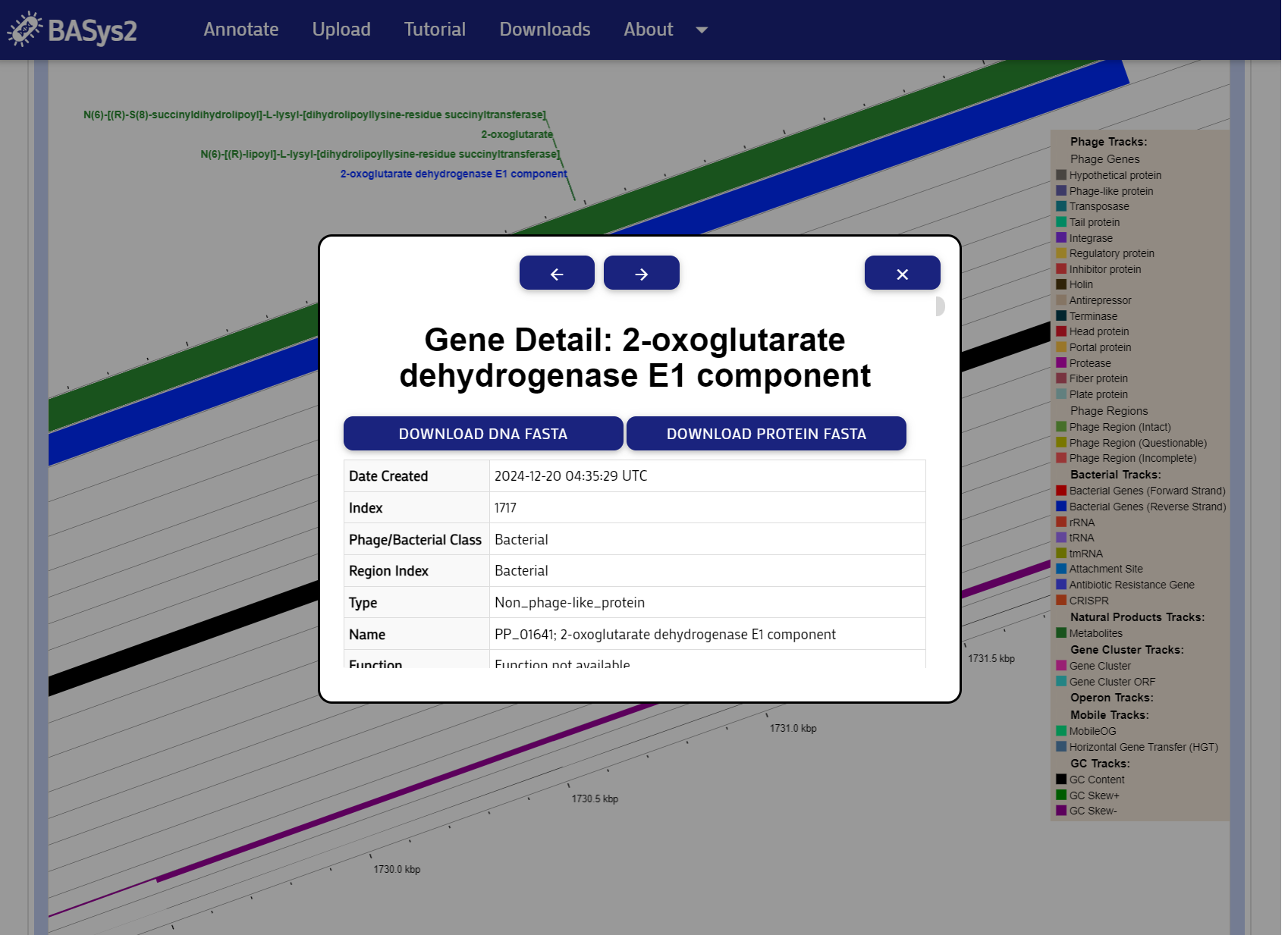
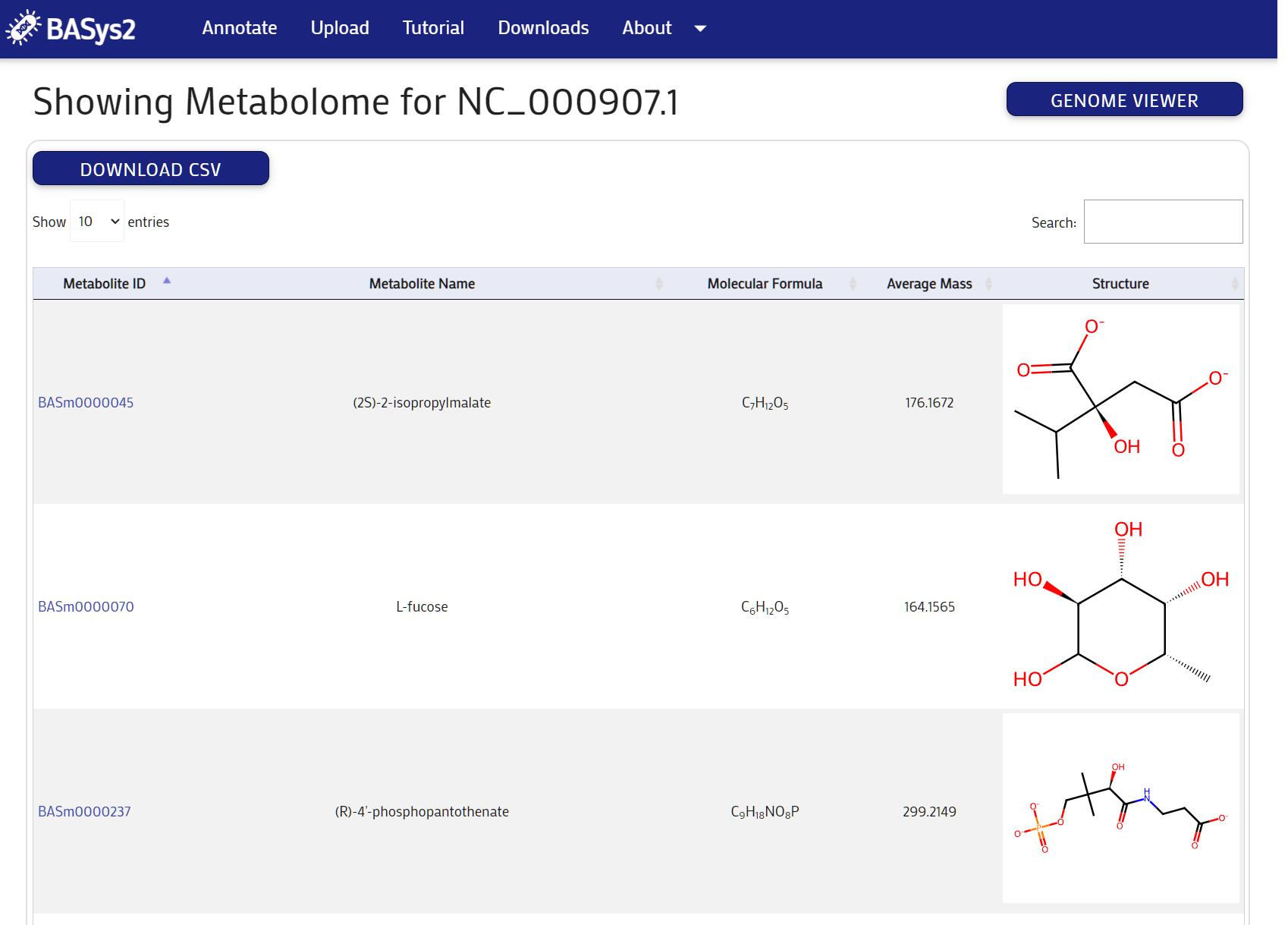
Step 5: Metabolome Table
Clicking the "Metabolome Table" button above the genome map will take you to the Metabolome page. Here you can view the full metabolome of the organism. You can filter the list by entering a search term in the search bar. You can also sort the list by clicking on the column headers.
Step 6: Metabolite page
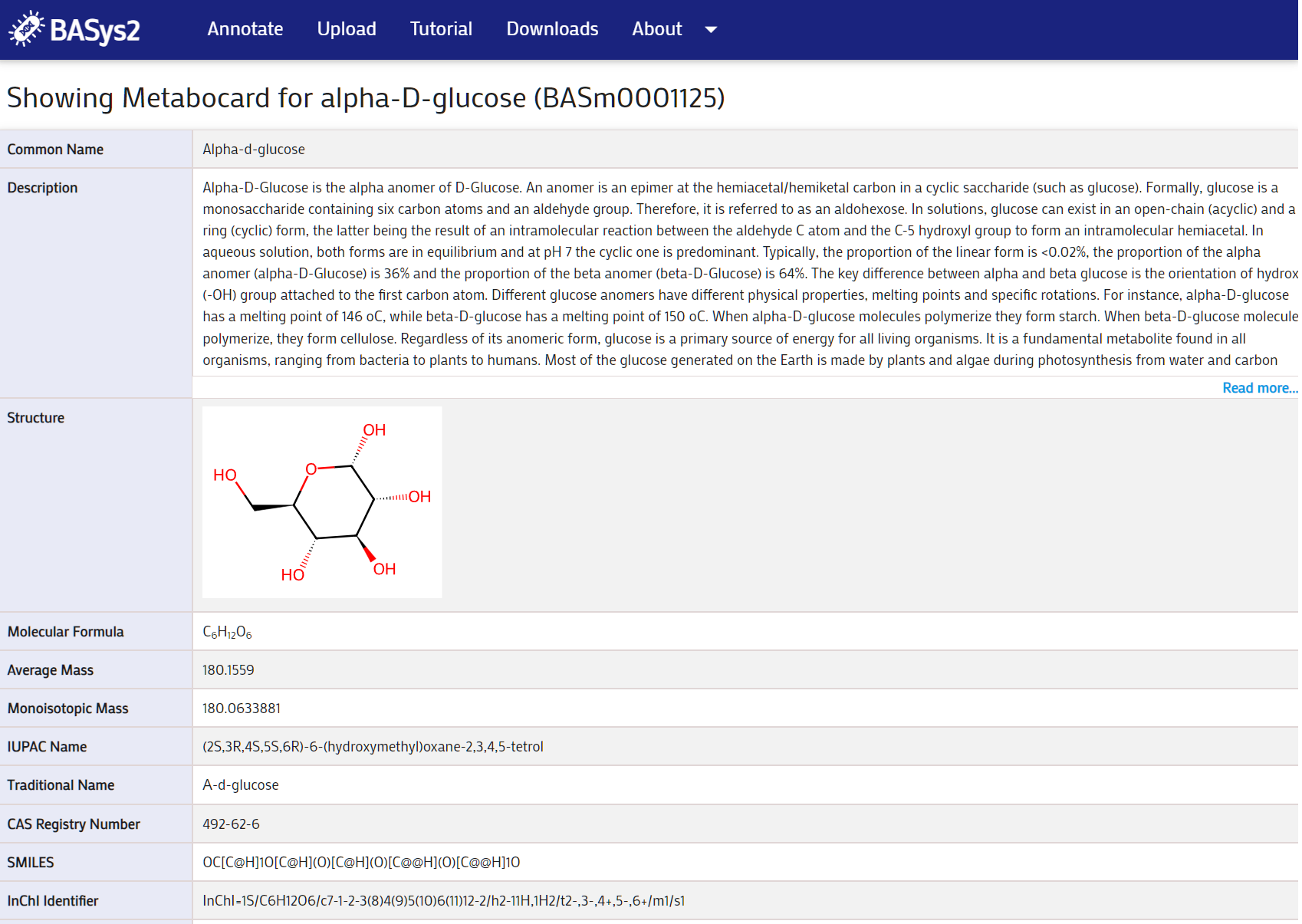
Clicking on a the metabolite ID link will take you to the Metabolite page. Here you can view the details of the metabolite.
Assemble
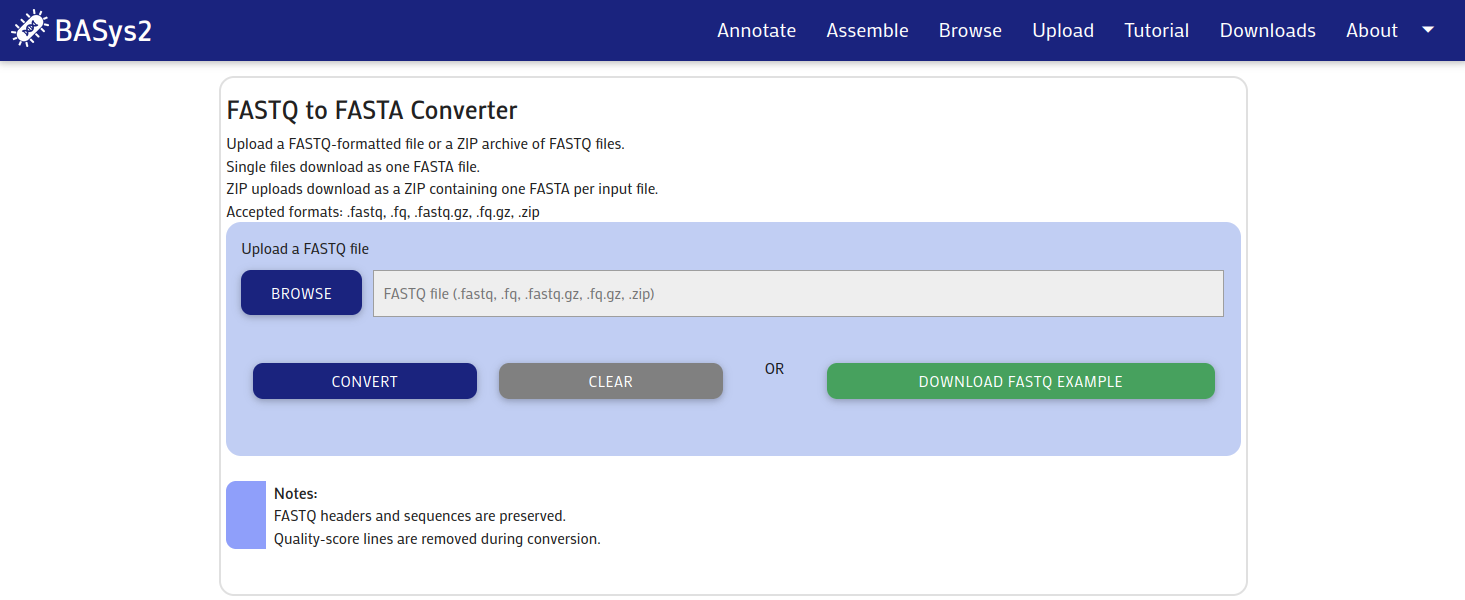
On the Assemble page, you can convert your sequencing data from FASTQ format into FASTA format so it can be used in the genome viewer. Start by uploading your file—supported formats include .fastq, .fq, .fastq.gz, .fq.gz, and .zip files that contain FASTQ data. If you don’t have your own files yet, you can click “Download FASTQ Example” to get a sample .zip folder with two FASTQ files to try it out. Once your file is uploaded, just click the “Convert” button to begin. After the conversion finishes, your FASTA file will be ready for download or to use in the next step of your analysis.
Browse
On the Browse page, you can explore available genomes by navigating through the biological taxonomy.
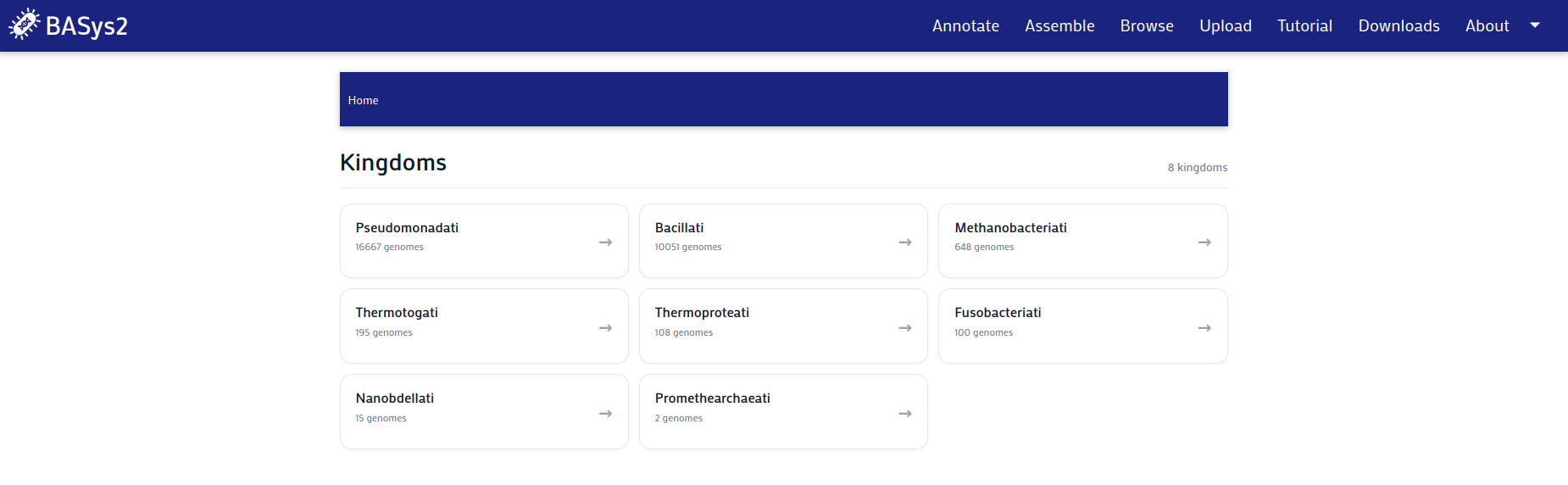
You’ll begin at the kingdom level, which groups organisms into broad categories. From there, click through each level of classification—such as phylum, class, order, family, and genus—to gradually narrow down your search.
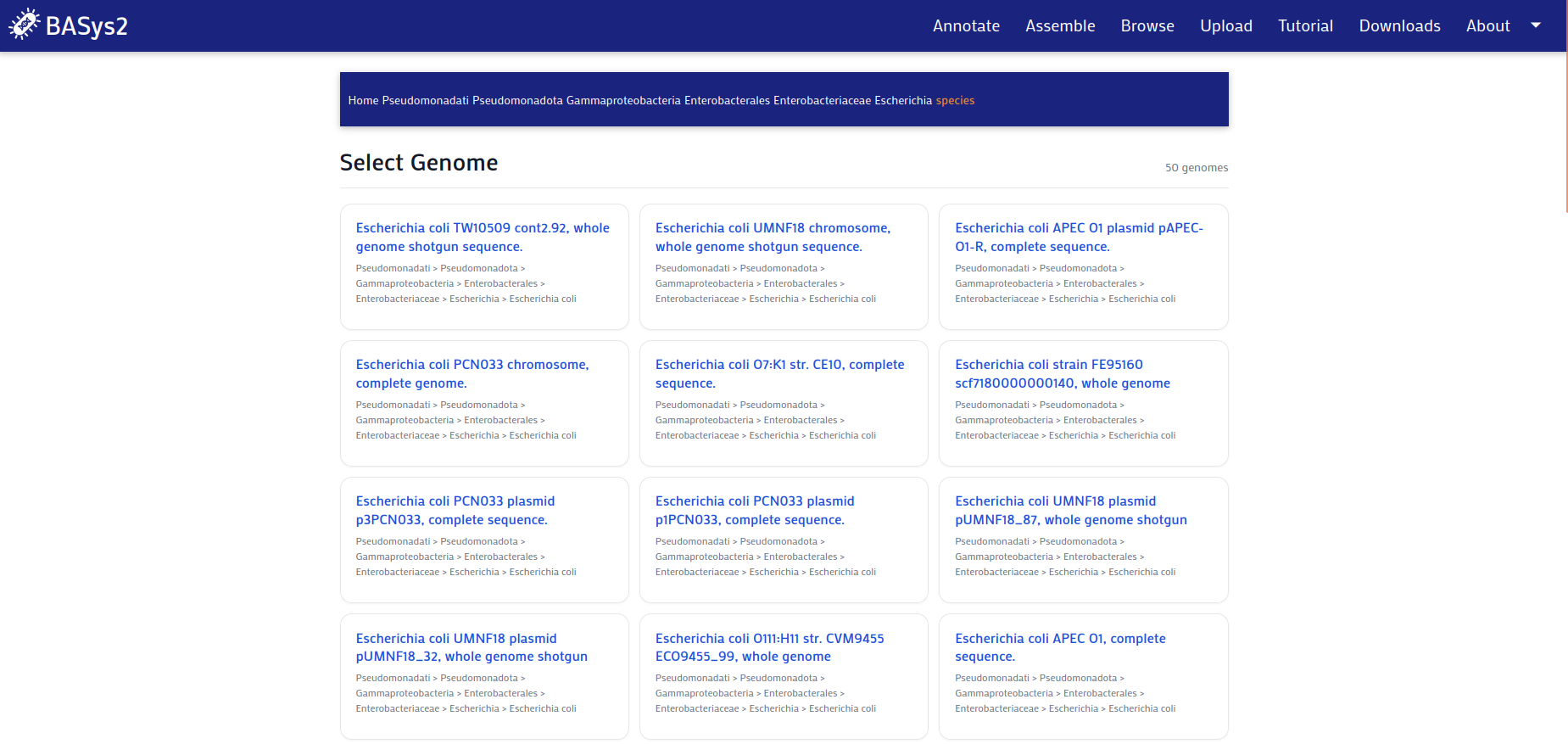
Once you reach the species you’re interested in, click on it to open its genome view, where you can begin exploring its genetic data.
Upload
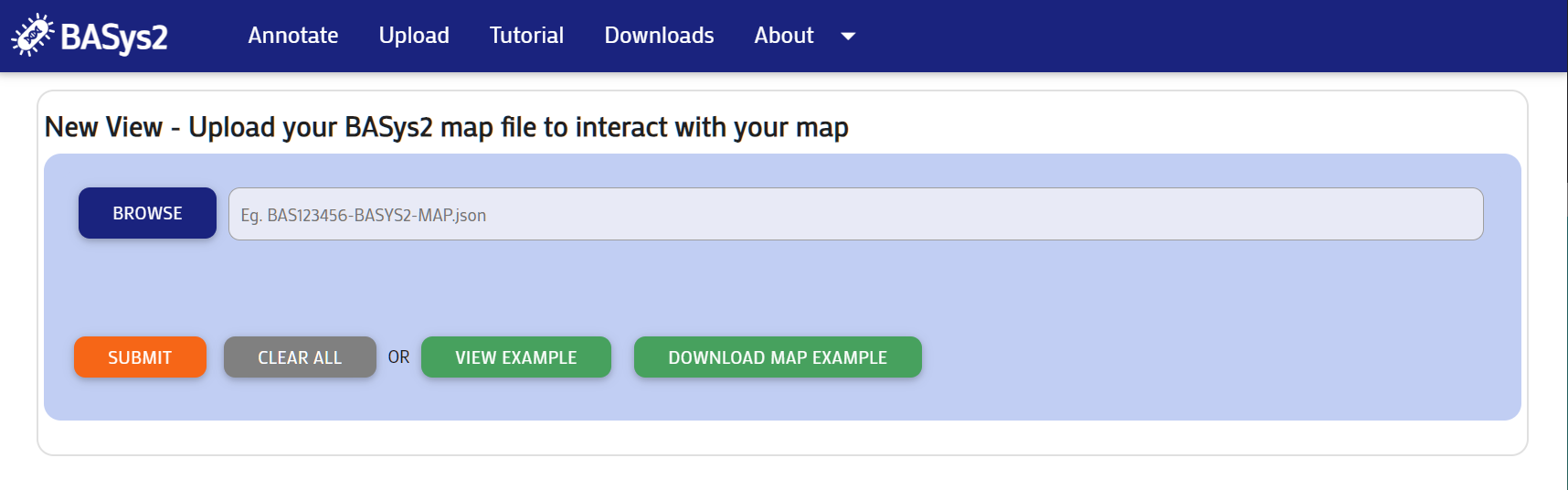
Step 1: Upload
Upload a map file from a previously run BASys2 job. This is the same process as uploading into the downloadable BASys2 Visualizer.
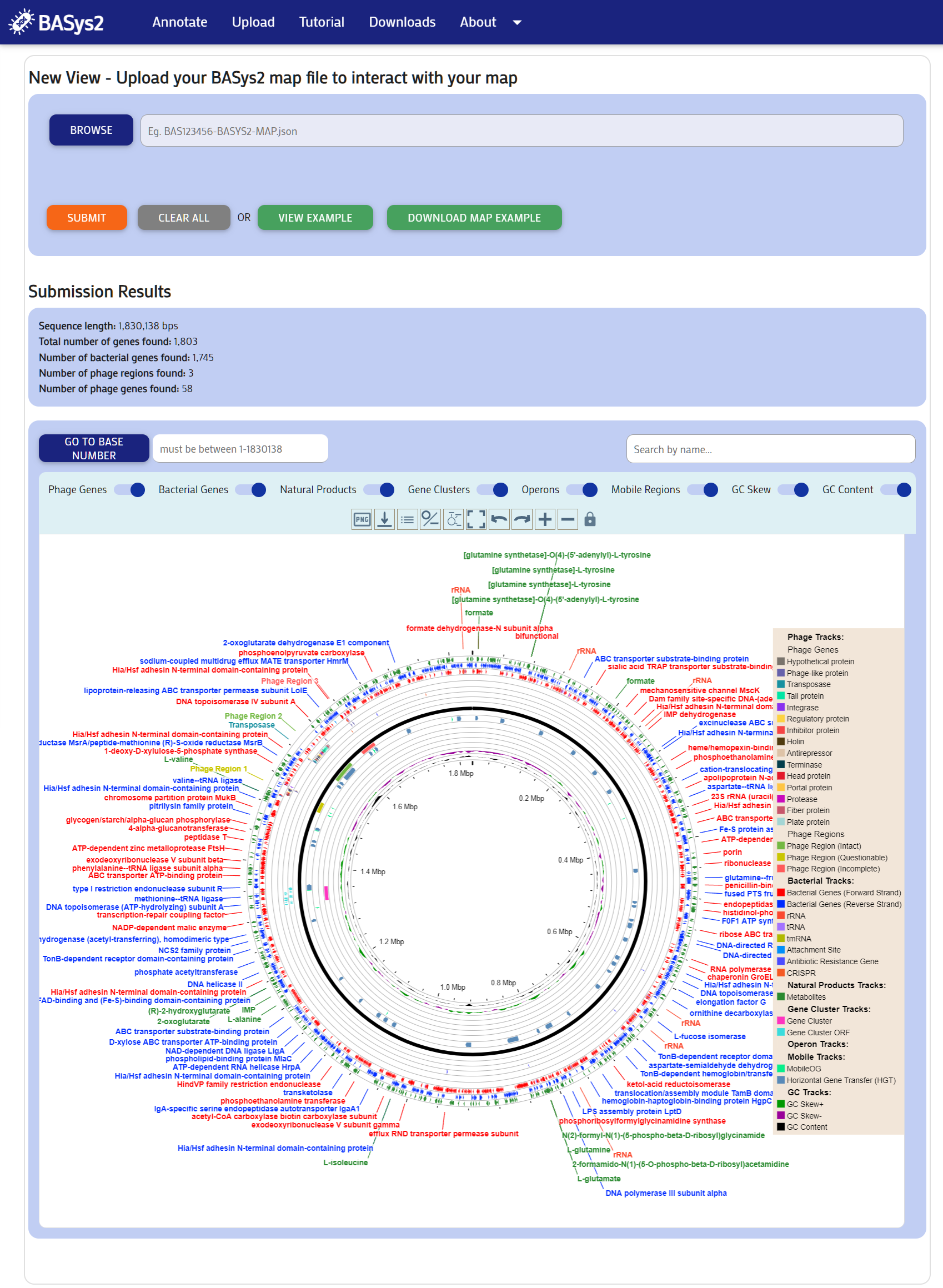
Step 2: Explore the Genome Map
You can explore the genome map in the same way as in the Annotate section.
Browser & Operating System Compatibility
BASys2 has been tested on all major browsers Firefox, Google Chrome, Microsoft Edge and Safari on MacOS, Linux, and Windows.
BASys2 Visualizer has been tested on MacOS, Linux, and Windows.
Disclaimer
BASys2 is a predictive tool, and positions of the predicted prophage regions and/or attachment sites may differ from actual prophage regions and/or attachment sites in some cases.